Enterprise Deployment Guide
This guide provides instructions for deploying the self-hosted SlashID browser extension in enterprise environments using Chrome's managed storage API for configuration.
Overview
The SlashID extension can be force-installed and configured through Chrome's enterprise policies without requiring Chrome Web Store publication. The extension reads configuration values from Chrome's managed storage API, allowing centralized management of settings like API endpoints, logging levels, and detection thresholds.
Deployment Options
Google Admin Console (Recommended)
Best for: Organizations using Google Workspace/Chrome Enterprise
Setup Steps:
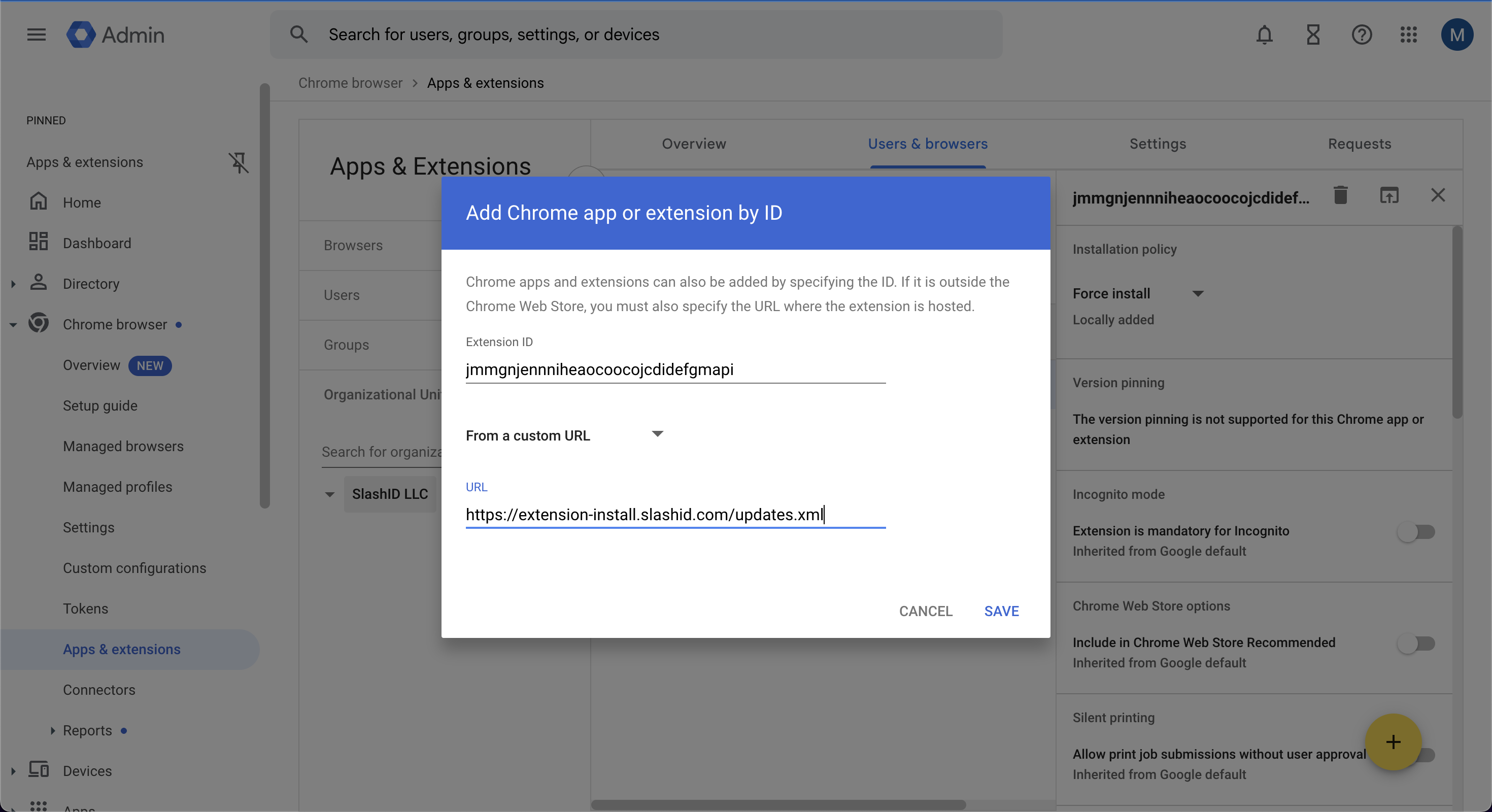
Use the UI controls in Google Admin to set up the extension in two steps - first add a new extension from a custom URL:
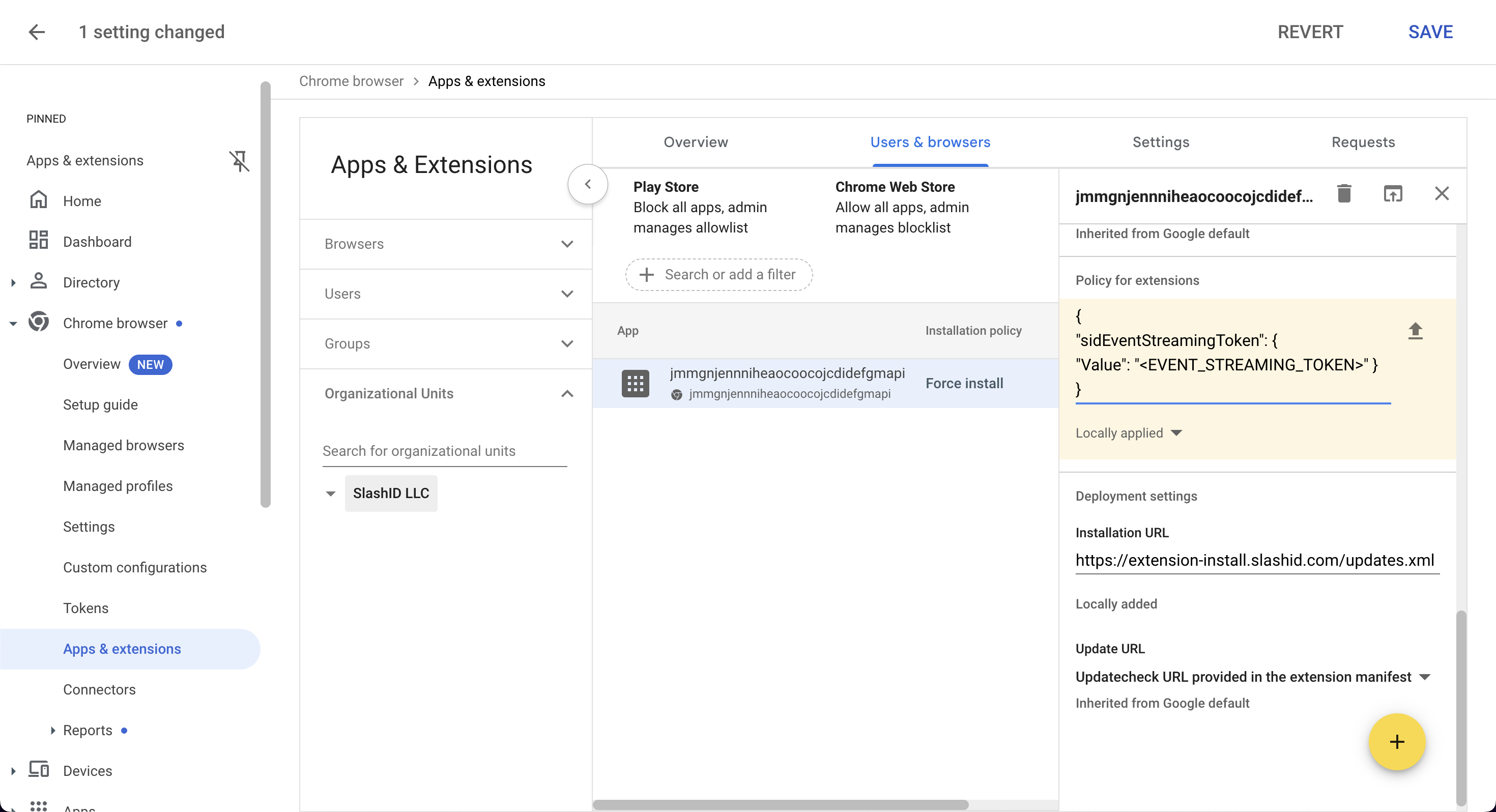
Then in the extension details view ensure it is force installed and upload the configuration as the extension policy:
Documentation: Chrome Enterprise - Managing Chrome Extensions
Microsoft Intune
Best for: Organizations using Microsoft Cloud
Setup Steps:
Use the UI controls in Microsoft Intune admin center to set up the extension in two steps.
Step 1: Create silent installation policy
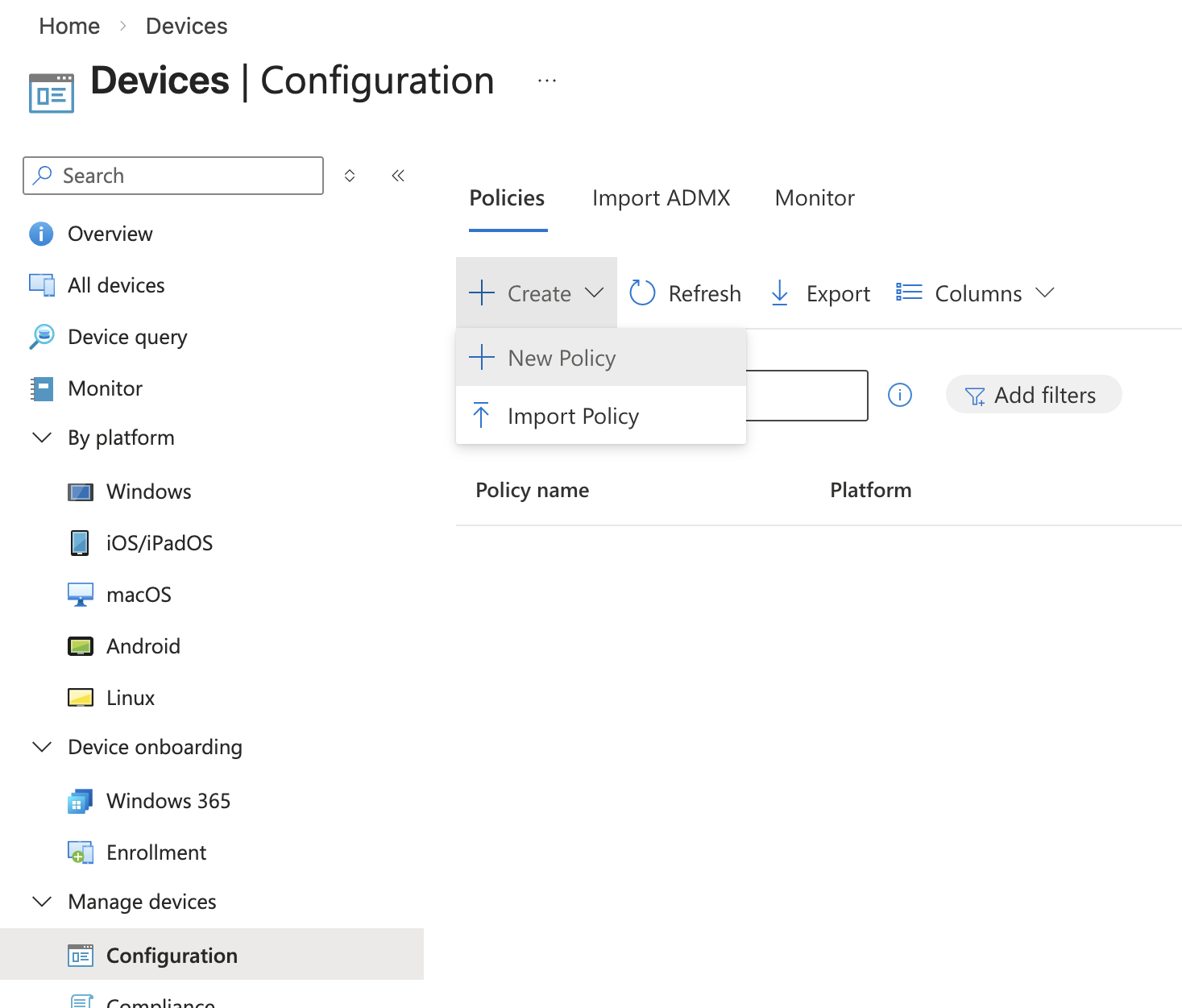
Add a new policy by navigating Devices -> Manage Devices -> Configuration.
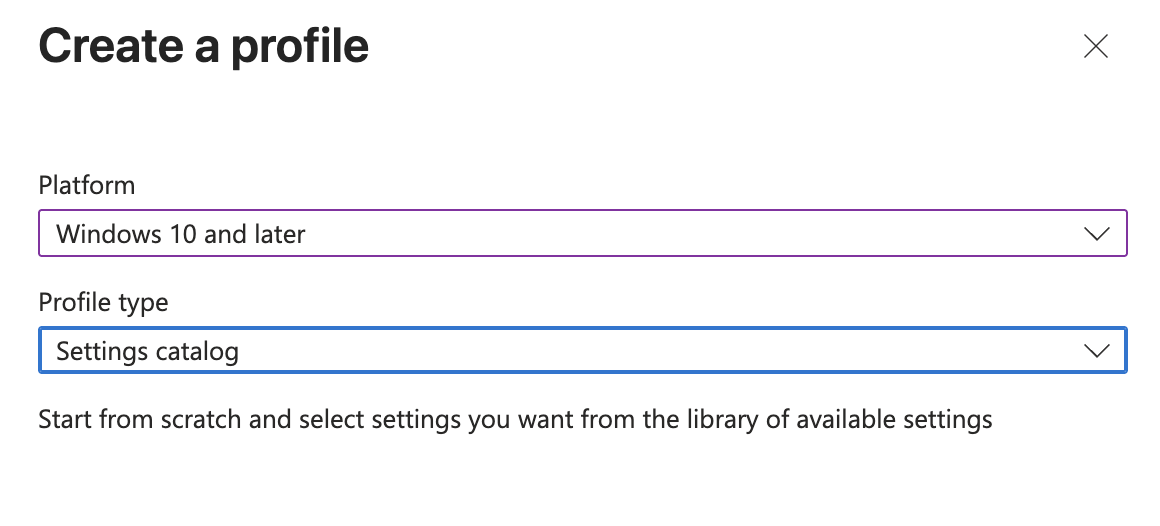
Choose your desired platform for deployment and choose Profile type: Settings catalog.
Once you've reached the Configuration settings step
- Click
+ Add Settings - Search for
Configure the list of force-installed apps and extensions - Choose the
Google Chrome Extensionscategory - Select
Configure the list of force-installed apps and extensions - Enable
Configure the list of force-installed apps and extensionsin the main pane.
Enter the following value in the input box:
jmmgnjennniheaocoocojcdidefgmapi;https://extension-install.slashid.com/updates.xml
This is the Chrome extension ID for the SlashID Browser Extension, and the URL where your devices will look for updates.

Complete the rest of the policy wizard, be sure to select the groups of devices or users who you wish to receive the deployment.
Step 2: Create third-party browser extension policy
Next add a new platform script by navigating Devices -> Manage Devices -> Scripts and Remediations.
Choose the Platform scripts tab, and Add a new script for your platform.
Create a .ps1 PowerShell script to set the sidEventStreamingToken value for your deployed SlashID Browser Extension.
$regPath = "HKLM:\SOFTWARE\Policies\Google\Chrome\3rdparty\extensions\jmmgnjennniheaocoocojcdidefgmapi\policy"
New-Item -Path $regPath -Force | Out-Null
Set-ItemProperty -Path $regPath -Name "sidEventStreamingToken" -Value "SLASHID_SENSOR_TOKEN" -Type String
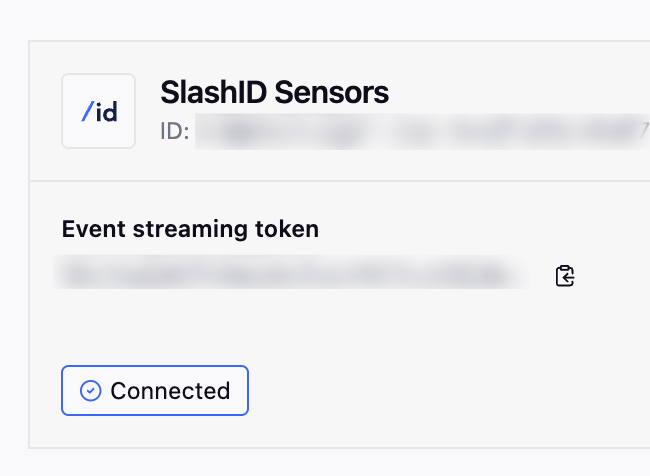
Replace SLASHID_SENSOR_TOKEN with the event streaming token of your SlashID Sensors data source.
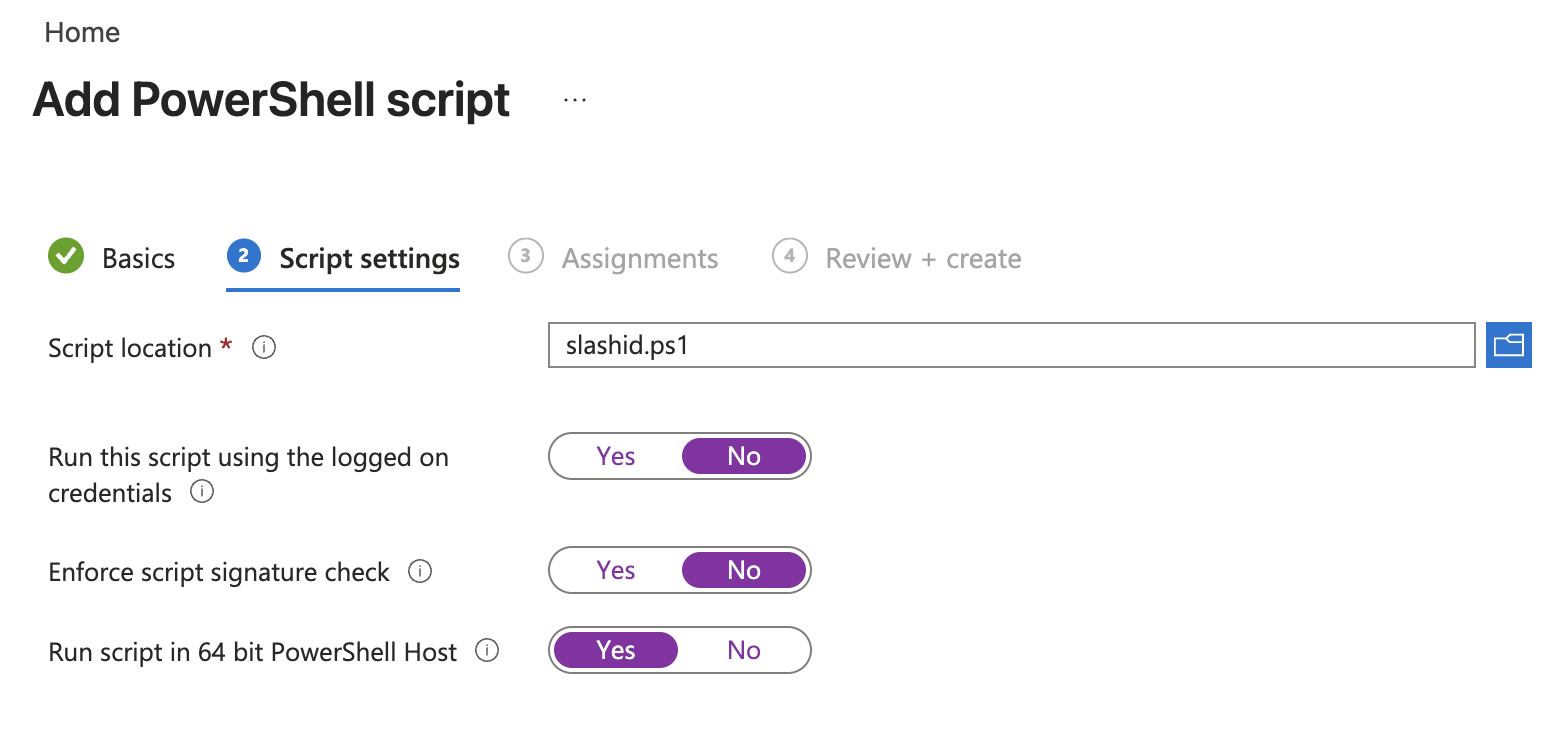
Upload the PowerShell script, and configure script settings.
We suggest the following settings, but you may wish to sign your PowerShell script and enable the signature check.
Complete the rest of the policy wizard, be sure to select the groups of devices or users who you wish to receive the deployment.